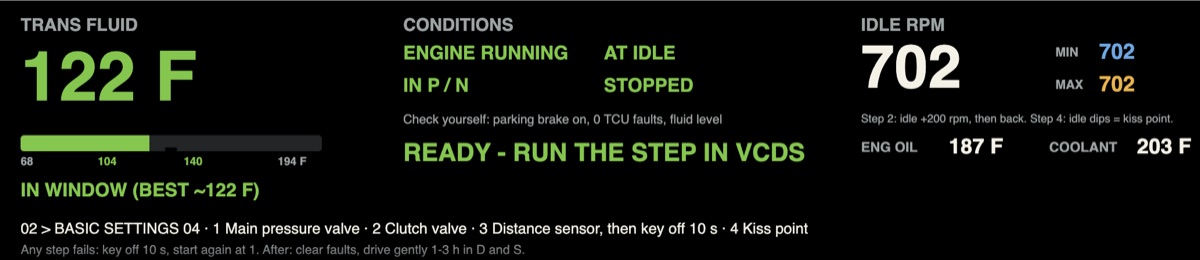
A custom screen is one small file, screen_N.json. You load it from any phone or laptop joined to the bTres Wi-Fi, through the bTres’s own web page. Images and videos go up the same way. Then restart the bTres. No app, no cable, no internet.
A custom S1/S2 screen (1920 × 480). This one helps with DL501 clutch adaptations.
What you need
The screen file. A screen_N.json: exported from the bTres Screen Editor, or shared by another owner. Editor exports and most shared screens come as a .zip; unzip it first. The .json and any images it uses are inside.
A phone or laptop with Wi-Fi. Any browser works.
The bTres switched on (ignition on).
A screen made for the S1/S2. The S1 and S2 display is 1920 × 480. Screens laid out for the X1 or M1 use a different size and will look wrong.
Add a screen in six steps
Step 3 is only needed when the screen uses images.
1
Join the bTres Wi-Fi
Phone or laptop
Open Wi-Fi settings and pick the bTres network.
Password: betterthan (the default).
Your device may warn that the network has no internet. Stay connected anyway.
2
Open the bTres page
Browser
http://192.168.220.1 or http://btres.local
Type the address into the browser and load it.
If it doesn’t load, check you’re still on the bTres Wi-Fi, then try the other address.
3
Upload the images first
Only if the screen uses images
bTres page → Image & video manager
Upload each image or video from the unzipped folder.
Accepted: .png.jpg.jpeg.gif.mp4. Full-screen artwork is best at 1920 × 480.
Keep the file names as they are. The screen finds its images by name.
Expect: the page reports “image uploaded successfully” for each file.
4
Upload the screen
The .json, not the .zip
bTres page → Custom Screens
Choose the screen_N.json file.
The upload starts as soon as the file is chosen.
Expect: the page reports “screen uploaded successfully”.
5
Restart the bTres
Loads the new screen
Use the restart button on the bTres page, or tap the bTres screen with four fingers.
Wait for it to come back up.
Expect: the bTres restarts and returns to its starting screen.
6
Find your screen
On the bTres
Swipe across the gauge screens until you reach the new one.
To adjust it on the bTres itself, tap and hold the custom screen.
Manage your screens
The bTres page’s Custom Screens section lists every screen on the unit, each with a download and a delete link.
Download before you delete. The downloaded file is a normal screen file you can upload again or share.
Images and videos are managed the same way under Image & video manager. Uploaded images can also be picked as the bTres splash screen in its settings.
Make your own screen
The free bTres Screen Editor (Windows and macOS) lets you lay out text, live readouts, bar and dial gauges, and images, with a live preview.
In the editor’s bTres Model menu, pick S1 / S2, so you design at the right size.
When it’s done: Import/Export Screen → Export Screen → Screen N. That saves a .zip with the screen_N.json, its images and a short README. Then follow the six steps above.
The editor’s macOS build is made for Intel Macs. On an Apple Silicon Mac, macOS offers to install Rosetta the first time you open it; accept, and it runs.
“Screen upload failed, file may not be compatible.” You probably picked the .zip. Unzip it and upload the screen_N.json inside.
Images show as blank boxes. Upload the images in the Image & video manager, with their original file names, then restart.
A readout shows its formula, such as [LC_State], instead of a number. Your DS1 doesn’t send that value, so the screen can’t fill it. The screen was made for another car or tune.
The screen is cut off or too small. It was laid out for a different bTres model. Re-make or adjust it in the editor with S1 / S2 selected.
The new screen doesn’t appear. Restart the bTres once more.